Add extra costs and use custom fields
Use Extra for order-level costs such as handling, and External when your WooCommerce data already contains cost values you want Statnav to read.
5 min readAdd an extra order cost
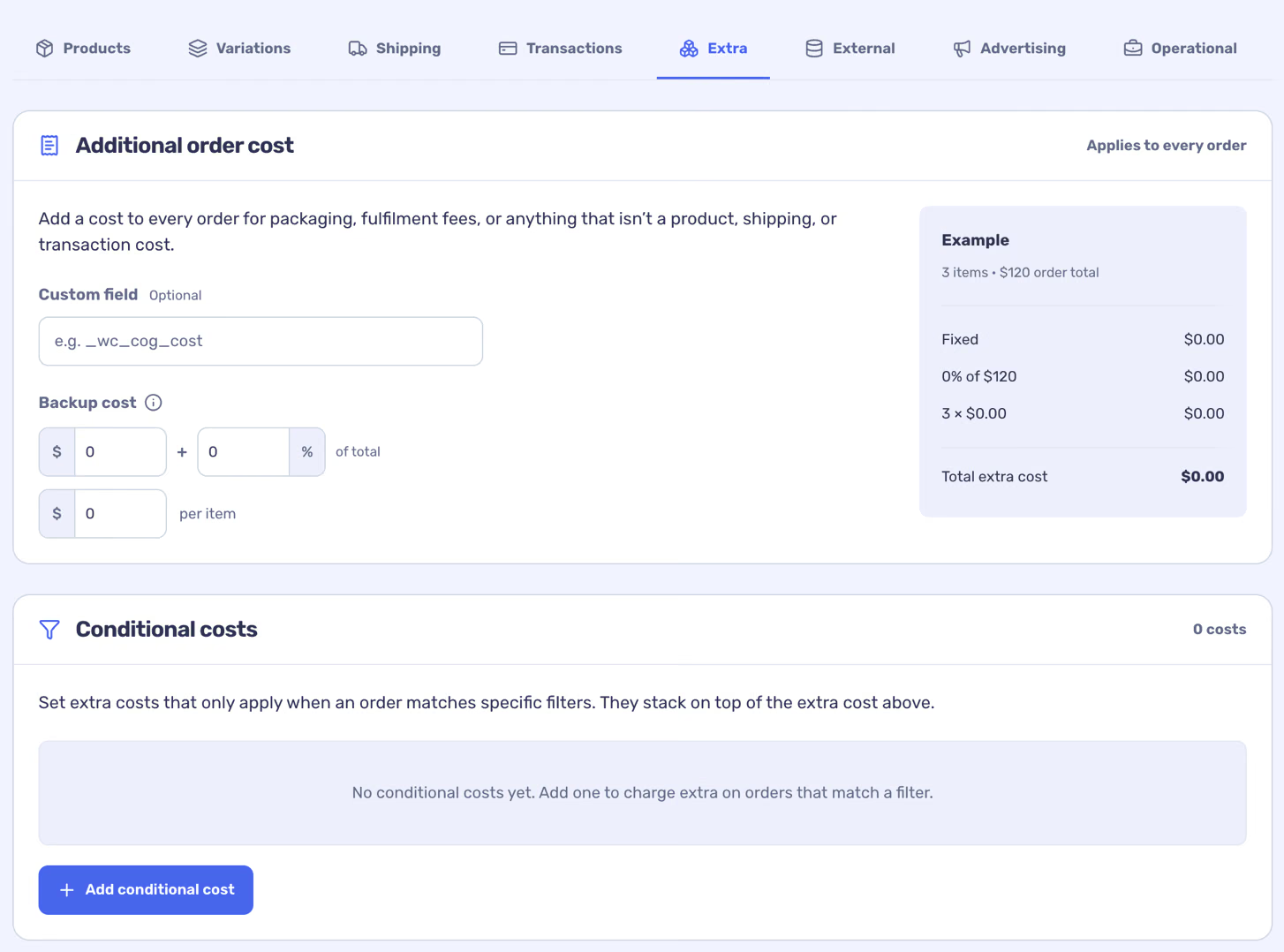
Open Costs → Extra to configure a general cost and, if needed, additional conditional costs. A conditional rule combines a cost with order filters, so you can model a charge that applies only to matching orders.
- Add a conditional cost, name it and enter a fixed amount or percentage.
- Add at least one complete order filter describing when it applies.
- Save the rule and then save your changes to the Costs section.
Use WooCommerce custom fields
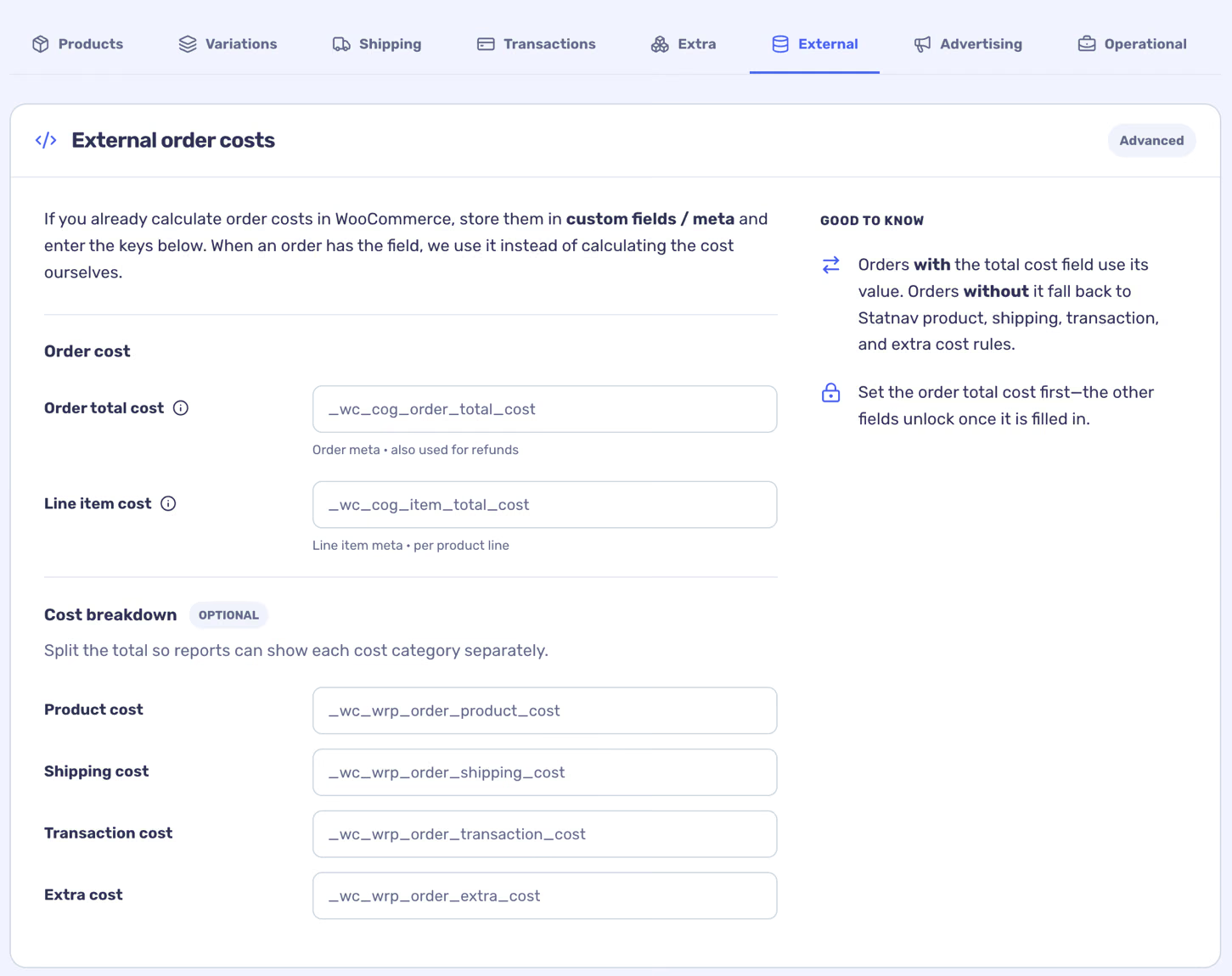
In Costs → External, enter the relevant meta keys for a total cost or individual cost components, such as product, shipping or transaction costs. These are field keys from your source data, not the displayed field labels.
A valid total-cost field takes precedence for the order; component fields can describe its breakdown. Check the keys and values on a few orders to avoid double-counting or missing costs.
Check historical application
The existing-orders option controls whether revised order rules are applied to past orders. Review it each time you save. If required source values are missing or cannot be converted, affected cost or profit figures may be unavailable.