Set product, shipping and transaction costs
Enter the costs you know to make profit more useful. Start with product costs, then add shipping and payment costs that apply to your orders.
7 min readSet product and variation costs
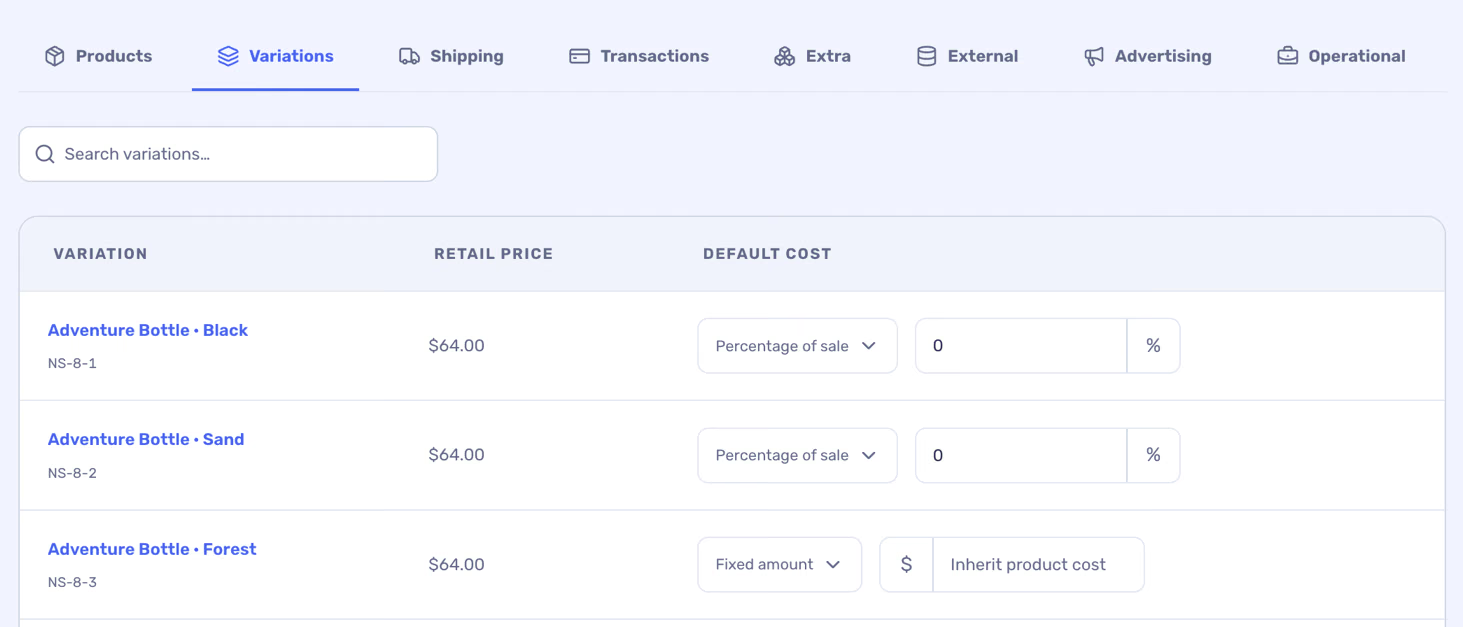
A variation rule takes precedence over its parent product rule. Use consistent units: a fixed product cost is applied per quantity sold.
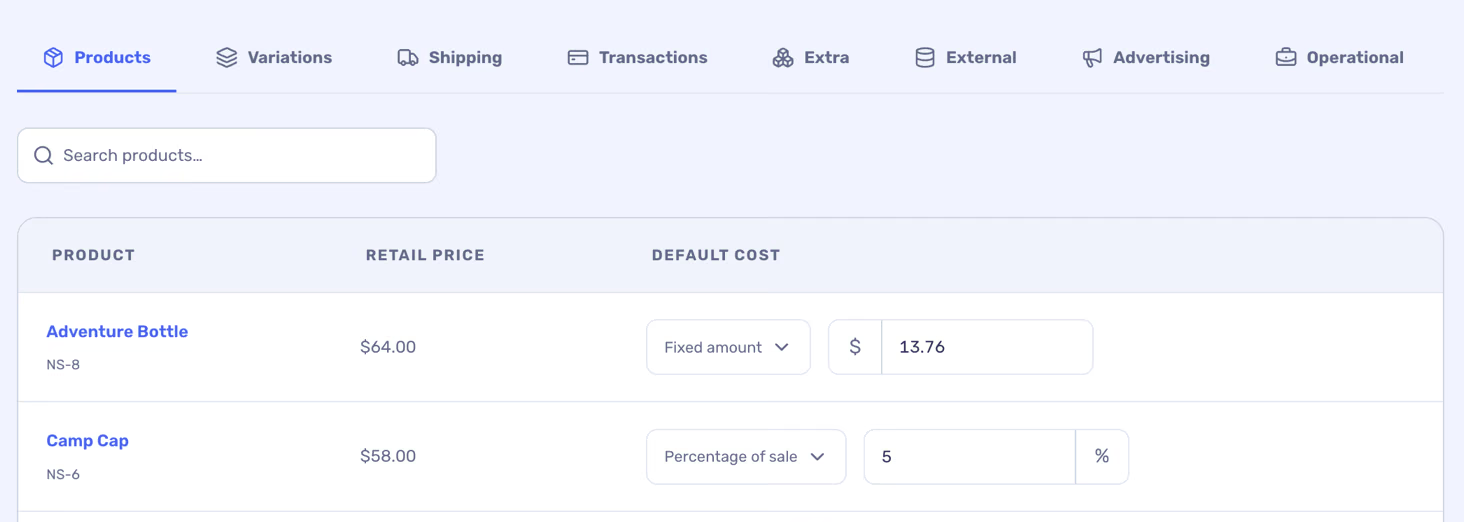
- Open Costs → Products and search for a product.
- Choose a fixed amount per item or a percentage of its sale amount and enter the cost.
- Open Variations to set a different cost for a particular variation where needed.
- Select Save Changes.
Set shipping costs
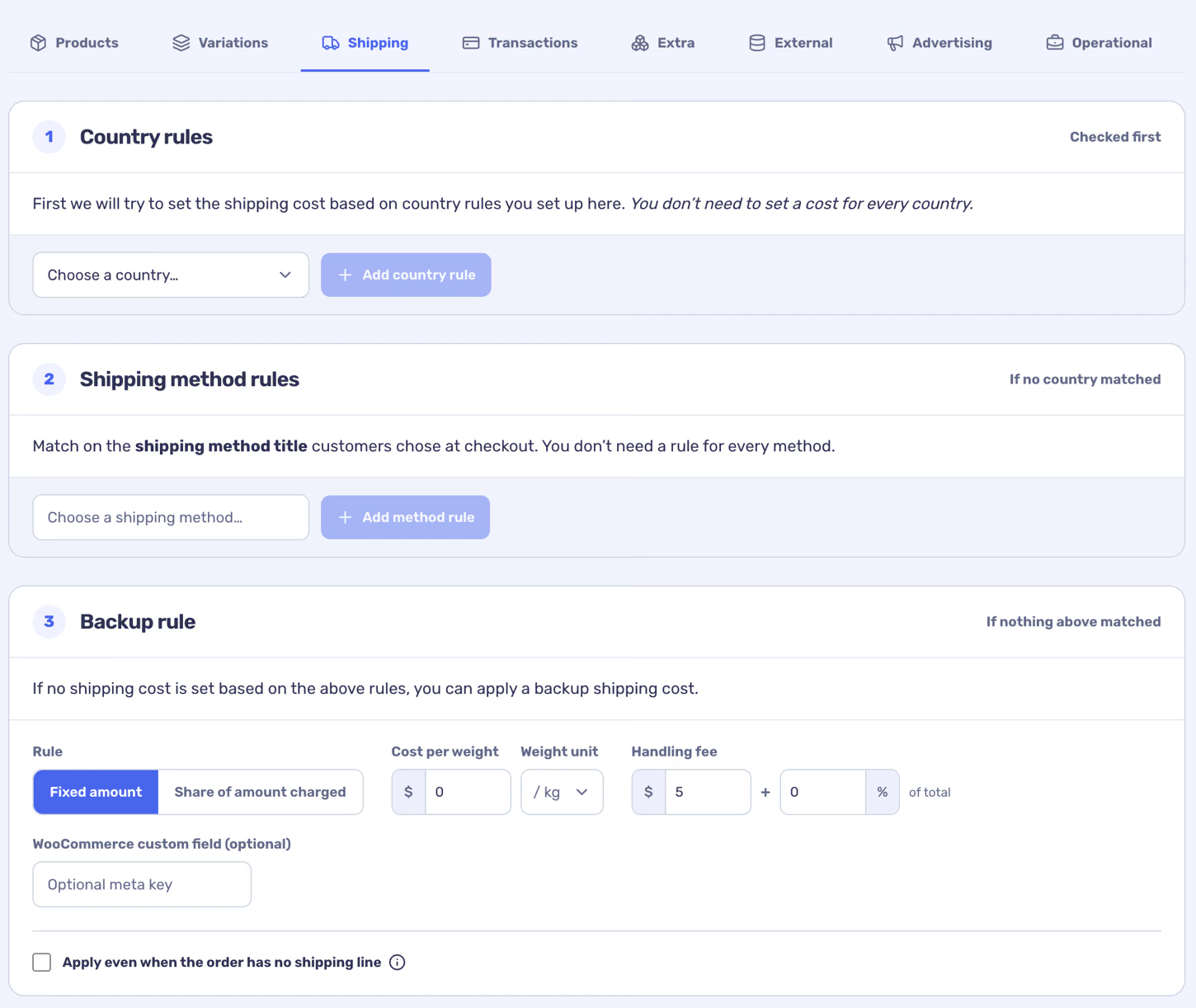
In Shipping, configure a country or shipping-method rule and a backup for orders without a matching rule. A rule can use a fixed or weight-based amount, a share of shipping charged, and handling. A custom field can supply a source value when configured.
If a weight-based rule needs a product weight that is missing, the affected cost may be unavailable. Check your WooCommerce weight units and product data.
Set payment gateway costs
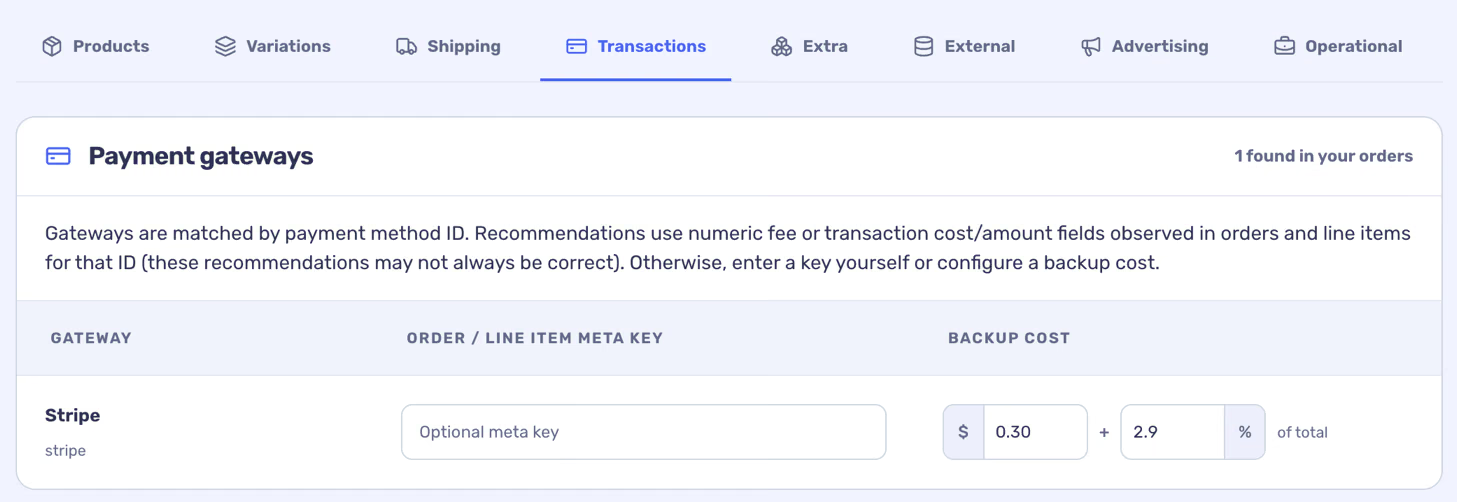
In Transactions, configure the fixed and percentage costs for the payment methods you use. Where an appropriate WooCommerce custom field contains the actual fee, you can use its key instead of relying only on an estimate. Verify a few orders against your payment provider.
Decide when changes apply
Before saving, review Apply these rules to existing orders too. Select it when the new order rules should also be used for historical orders; otherwise the rules apply to new orders. Save the changes and check representative orders. Operational schedules use their own dates.
Configured costs are estimates unless backed by accurate source values. They do not alter the underlying WooCommerce order.