Use and customise your dashboard
The dashboard is your starting point for checking store activity. Choose a date range, explore the overview, and arrange the cards that matter to you.
6 min readRead the overview
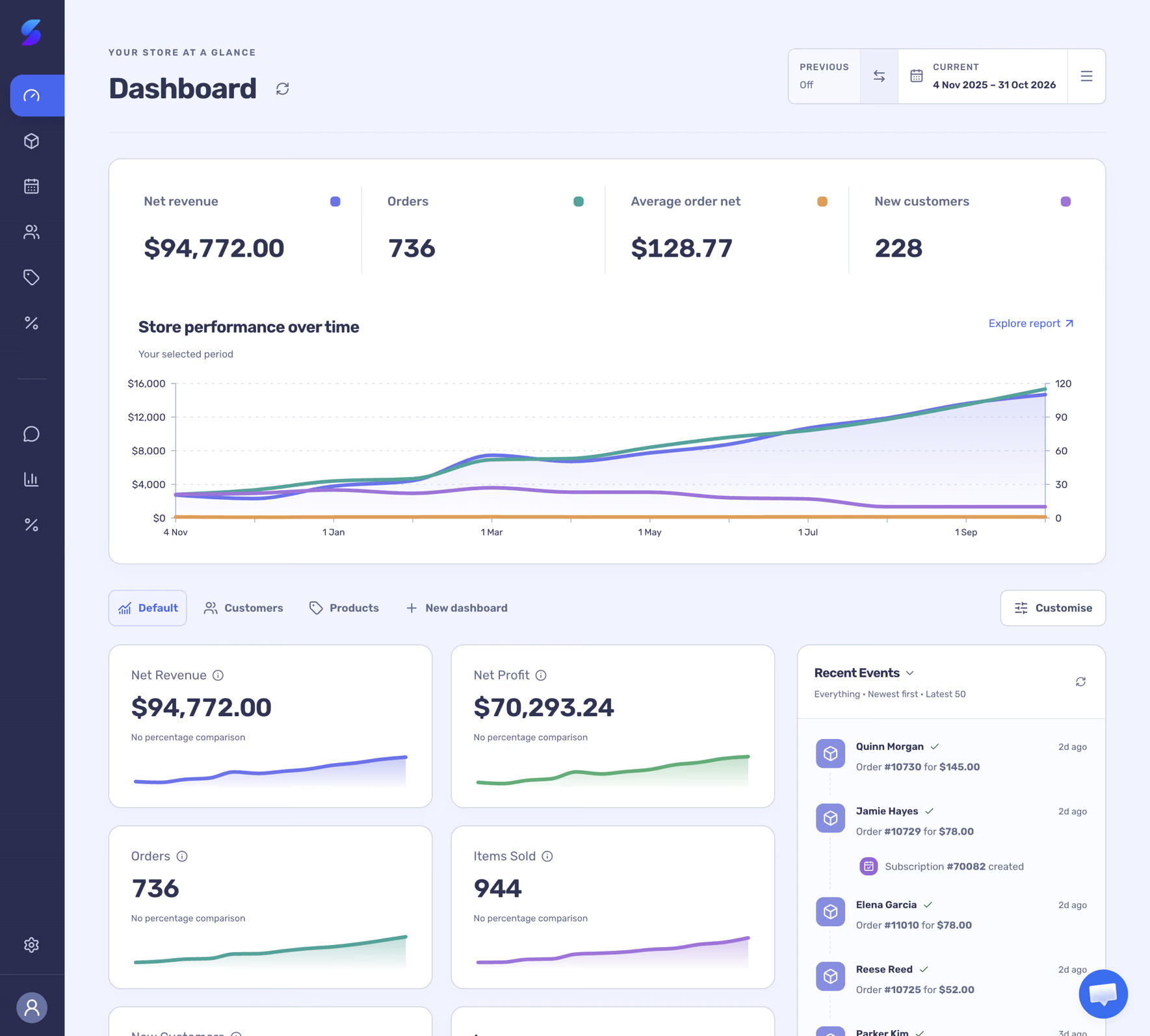
The overview shows net revenue, orders, average order net and new customers for the selected period. Select a metric to show or hide its series; hover over the chart to inspect a point. The two axes use different scales, so compare each line with its own scale.
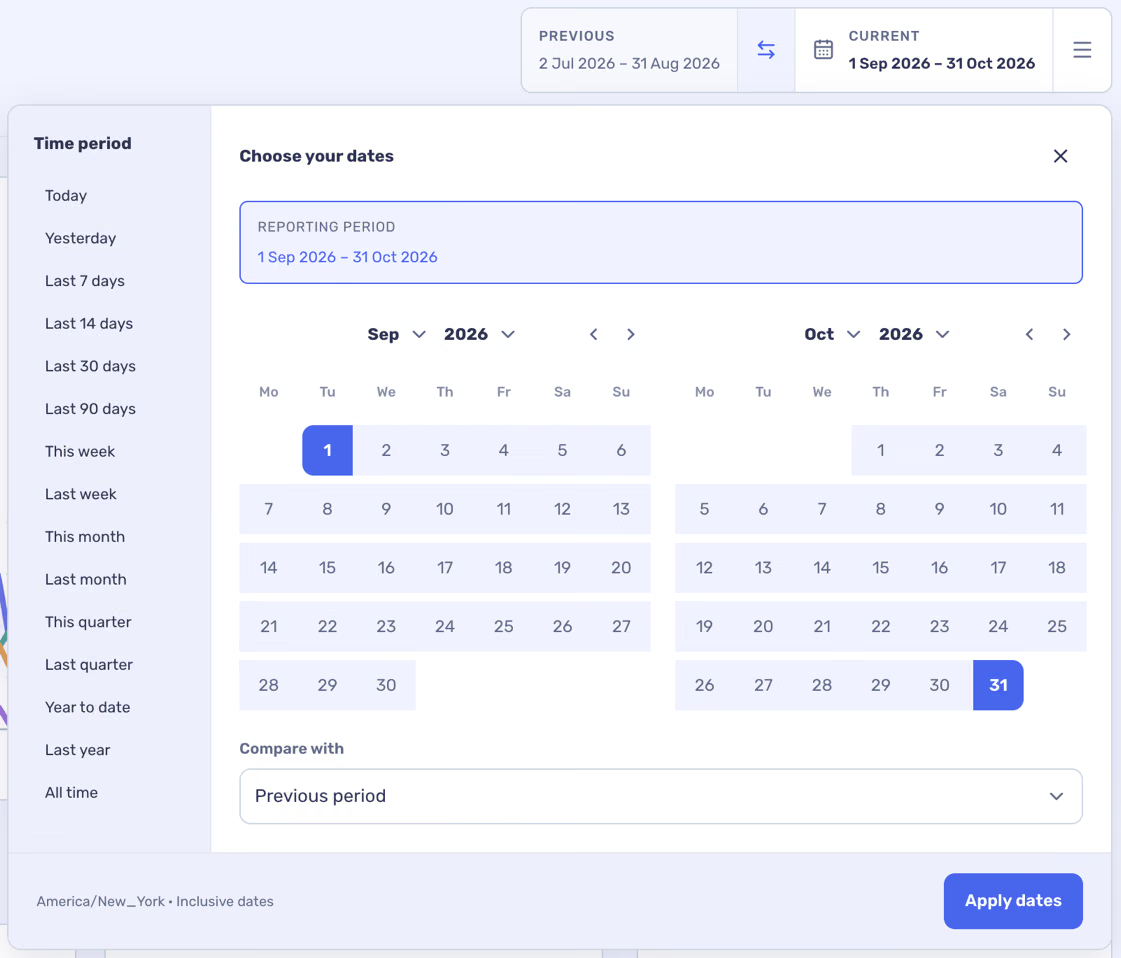
Use the date selector at the top to choose a preset or custom range and, where available, a comparison. Dates follow the store’s reporting settings. The comparison toggle lets you turn the previous period on or off.
A dash or data-quality notice means a value is unavailable or incomplete; it is not necessarily zero.
Use dashboard cards
Below the overview, switch between Default, Customers, Products and any dashboards you have saved. Cards show a selected metric and, where available, a trend and comparison. Select a linked card to explore its underlying detail.
- Select Customise on the dashboard.
- Add or remove cards, choose the column layout and drag cards into a useful order.
- Save as new layout to create a named dashboard. For a custom layout, use Save layout to update it or Delete layout to remove it.
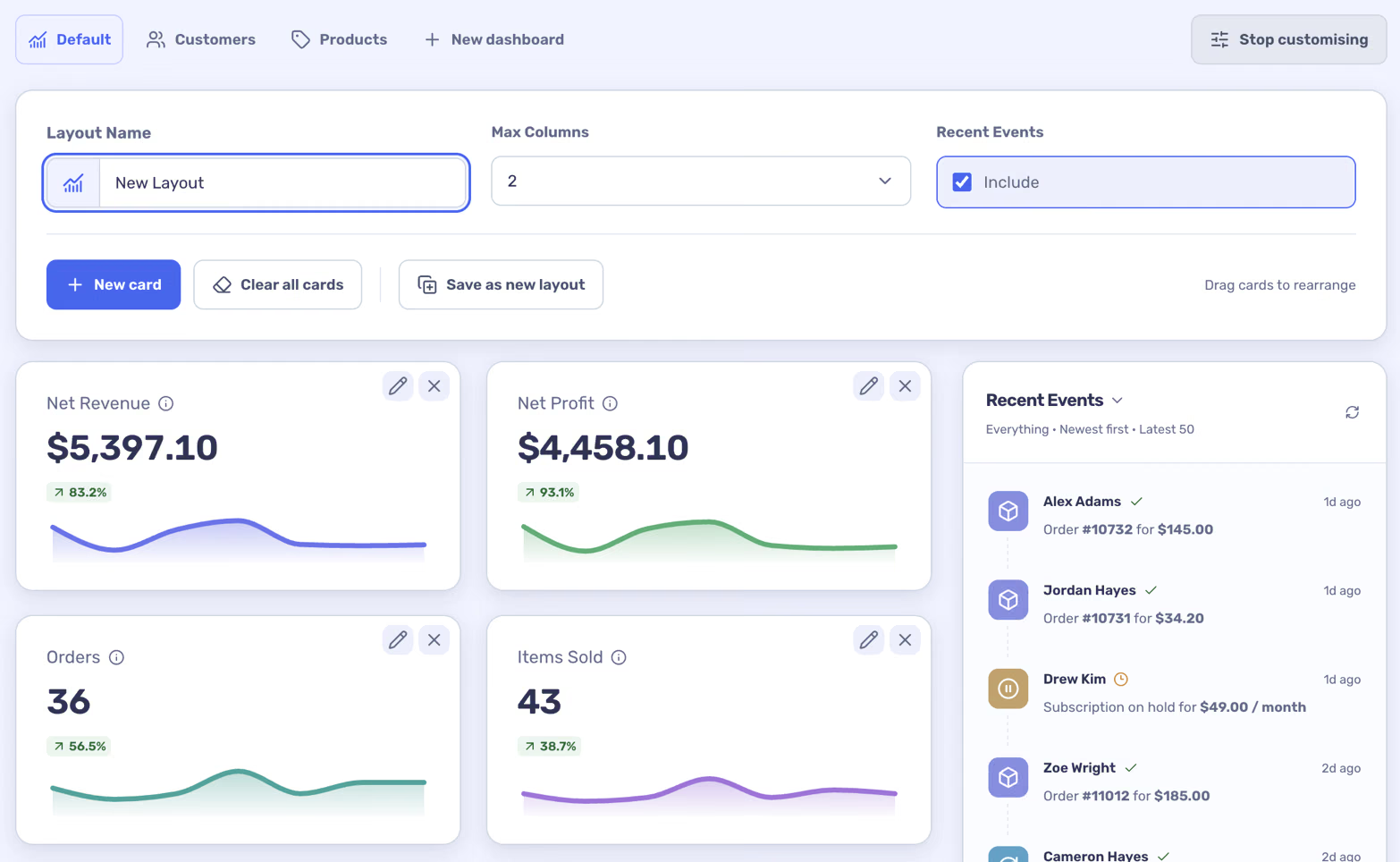
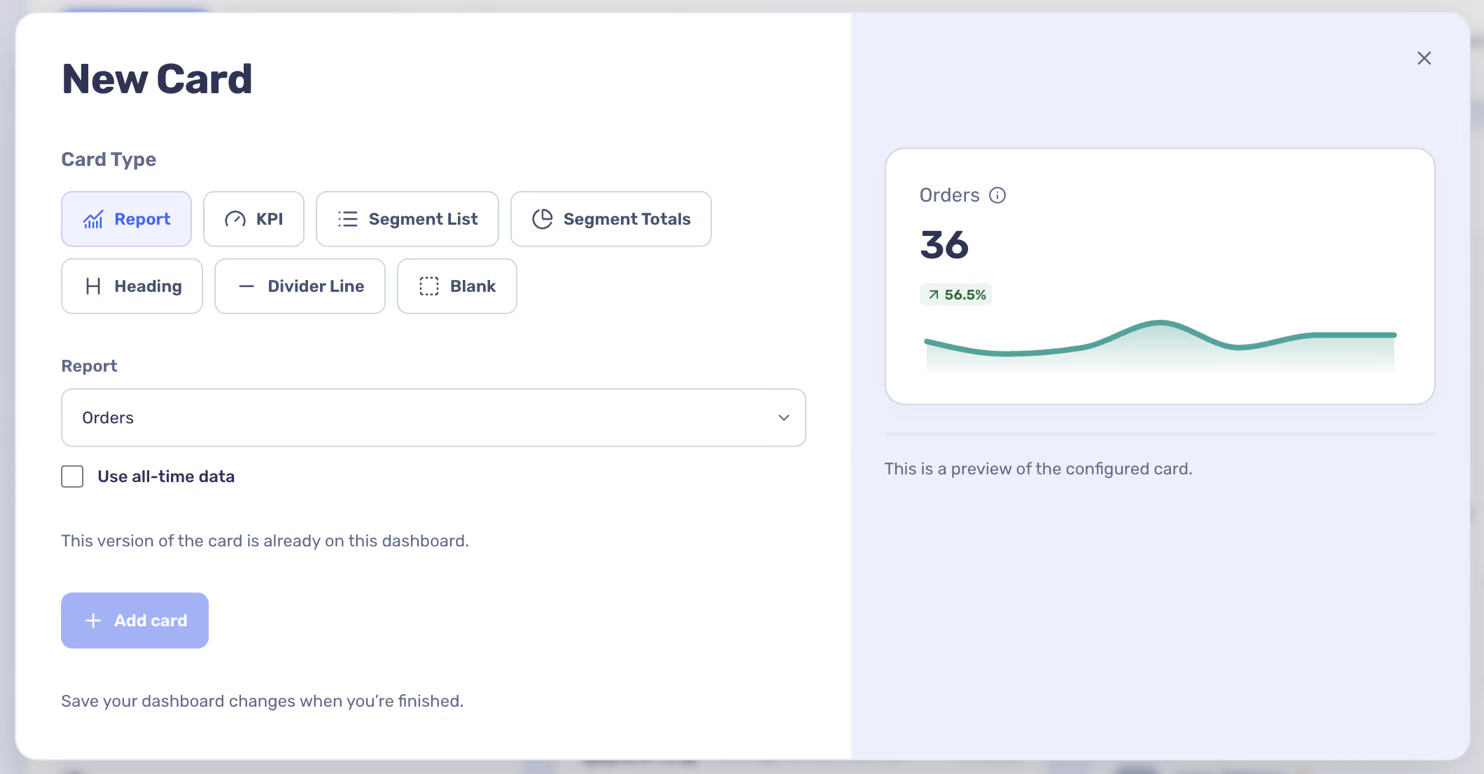
The built-in layouts can be used as a starting point for a new layout.
Follow recent activity
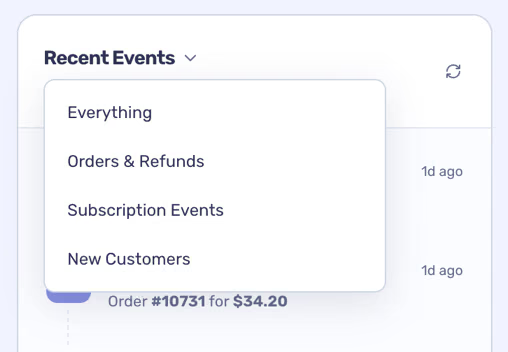
Recent Events can show orders, refunds, customers and subscription activity when those records are available. Use its heading menu to focus on an event type, select a row to open the related record, or use the refresh control to reload the panel.
The panel follows the selected date range. If you cannot see a recent event, check the range, event type and whether your store has finished syncing.