Set costs and read profit
Profit adds recorded costs to the revenue picture. Set costs for your store first, then use the Net Profit report to see what remains.
4 min readSet the costs you know
The Costs area also has options for supported WooCommerce cost custom fields and for one-off or recurring operational costs.
- Open Costs and choose Products to enter a fixed or percentage cost for each product.
- Use Variations when a variation needs a different cost from its parent product.
- Configure Shipping, Transaction, and Extra order costs where they apply to your business.
- Select Save Changes in each section you edit.
Decide what happens to existing orders
When saving order cost rules, the Apply these rules to existing orders too option controls whether earlier orders are recalculated. Without it, previously created orders retain their earlier rules.
Review a few known orders after configuring costs, especially before applying new rules to your history.
Read the Net Profit report
Advertising and operational expenses are shared costs, so they cannot be allocated to an order segment. The report offers a separate option to include those shared costs when segmenting. Missing required cost data can make some profit totals unavailable.
- Open Reports → Net Profit or select View Net Profit report from Costs.
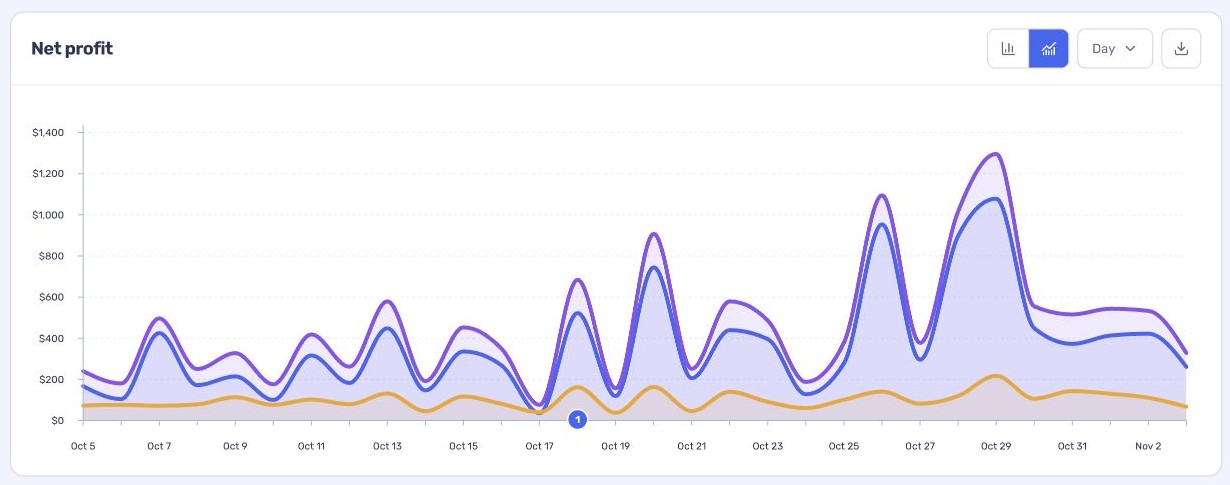
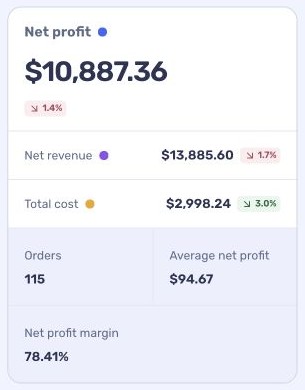
- Choose a date range and review the breakdown of net revenue and recorded costs.
- Use Segment if you want to narrow the qualifying orders.