Work with orders and refunds
Use Orders to inspect a transaction and Refunds to find a refund event. The two views answer different questions: an order records the sale; a refund records money returned later.
6 min readFind an order
The order detail shows its current status, items, source total, payment information and customer details. Related subscriptions and source or custom fields appear when available.
- Open Orders in the sidebar, search by order number or customer details, and adjust the sort if needed.
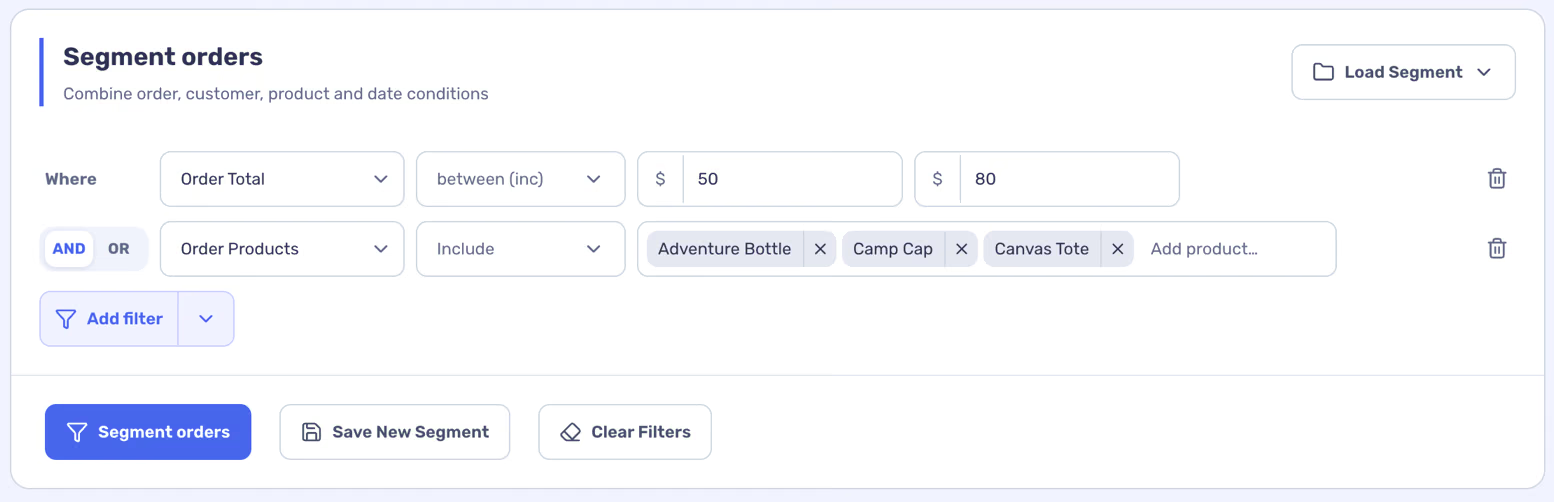
- Use the segment builder for conditions such as status, product or date, then select Segment orders.
- Select the order number to open its details.
Review the source record
Follow the customer or product link for context. The Edit action opens the order in WooCommerce; changing an order status or working with WooCommerce notes requires a working connection. A private note stays internal, while a customer note is intended for the customer.
Amounts and statuses shown on a source order can differ from a filtered net-revenue total because reporting settings and refund dates affect the latter.
Find a refund
- Expand Orders and select Refunds.
- Search, sort or segment the refund list, then open the related order for context.
- Check the refund date, amount and any available item or reason details.
A partial refund and a returned item are not always the same thing. A cash-only refund may not contain a returned quantity.